Front Desk Reports and New Day
Run a report
- Open Reports and choose the report that answers your question.
- Enter the correct business-date range.
- Select Generate.
- Confirm the title, period, totals, and filters.
- Trace unusual values to the stay, payment, refund, or room-move record.
- Print or copy only through approved channels.
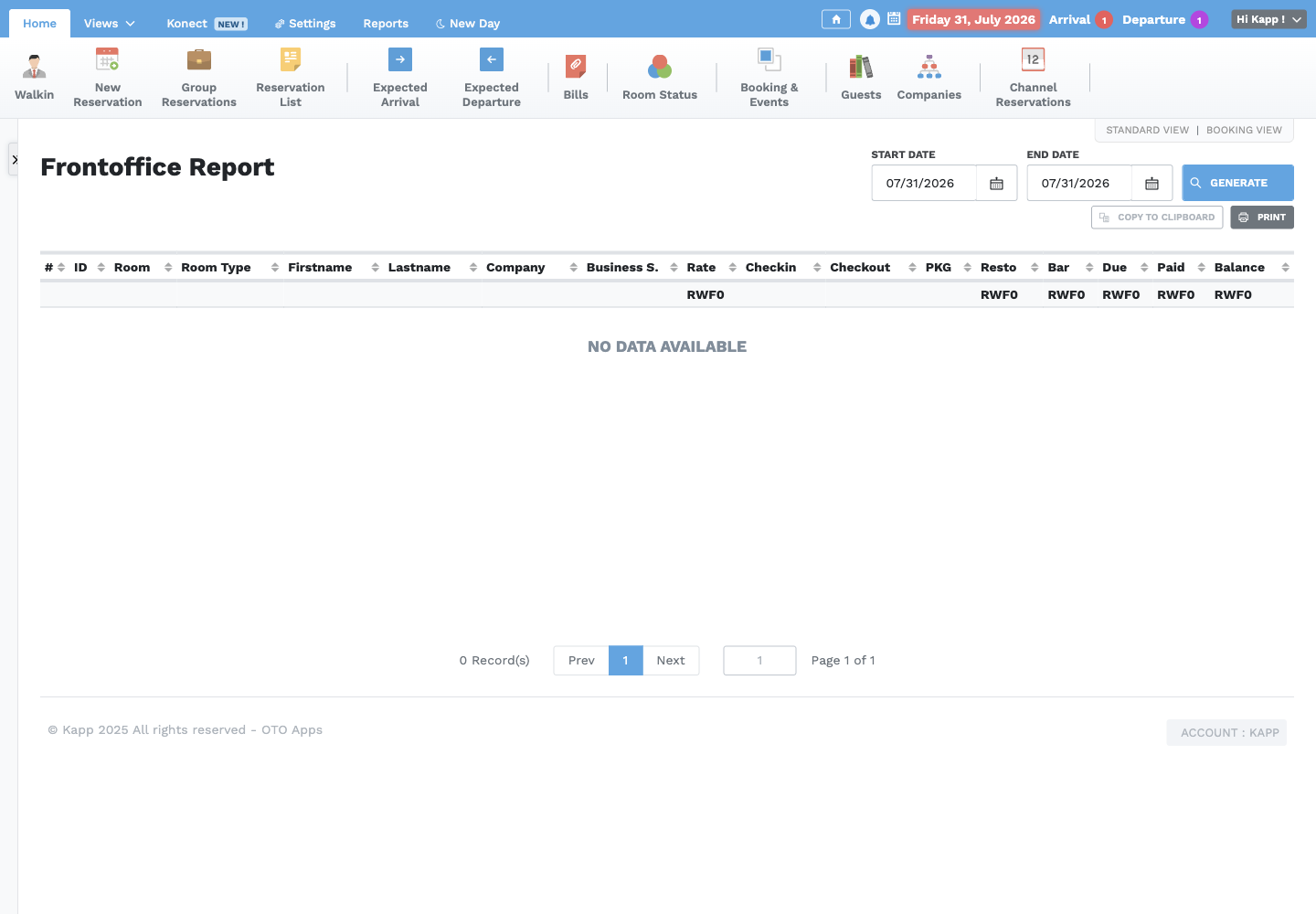
Choose the right report
| Question | Report |
|---|---|
| What is the full operational and balance position? | Front Office Control |
| Who arrived or is expected? | Arrival / Expected Arrival |
| Who departed or is expected to depart? | Departure / Expected Departure |
| Which services were charged? | Service Sales |
| Who receives breakfast under the package? | Breakfast |
| What are occupancy, ADR, RevPAR, and revenue? | Sales Overview |
| Where did bookings originate? | Business Source |
| What direct and channel bookings exist? | Bookings |
| Which payments were received? | Payment Control |
| Which payments were refunded? | Refunds |
| Who is currently staying? | In-House Guests |
| What must I reconcile for my shift? | My Shift |
| What did each receptionist collect? | Receptionist |
| Which guests changed rooms? | Room Transfer |
Shift reconciliation
Compare My Shift with the payment list and physical or electronic tender for each method. Confirm refunds separately. Record any difference and notify the Supervisor before handover; do not create a false payment to force agreement.
What New Day does
New Day closes the current Front Desk business date and moves OTO to the next business date. During the process, OTO:
- posts the day's accommodation charge for eligible in-house stays;
- records the daily Front Desk closing information and reports;
- moves the Front Desk business date forward by one day; and
- updates connected channel availability when that service is enabled.
New Day does not check guests in or out, resolve unpaid balances, clean rooms, or correct an inaccurate reservation. Complete or hand over those tasks first. Once the date moves forward, new activity belongs to the new business date.
New Day preparation
New Day advances the Front Desk business date. Before an authorized user starts:
- Review expected arrivals, departures, in-house guests, and room statuses.
- Complete or hand over unresolved check-ins, checkouts, room moves, and events.
- Post all authorized accommodation and service charges.
- Reconcile payments and refunds by method and receptionist.
- Review guest balances and unresolved credit arrangements.
- Confirm Dirty, Blocked, and House Use rooms have an owner and handover note.
- Run the daily operational and financial reports.
- Confirm no pending bills or orders remain. New Day cannot continue while they are pending.
- Obtain Supervisor authorization.
Complete New Day
- Open New Day only after the closing checks are complete.
- Review In-House Guests: Stay ID, room, guest, rate, check-in, and checkout.
- Continue to Summary and review room sales, expected and actual arrivals, and expected and actual departures.
- If anything is incomplete, close the process and correct or hand it over.
- Select New Day, read the confirmation, and confirm once.
- Verify that the displayed business date is the next day.
- Confirm the in-house stays, room statuses, balances, and expected-arrival and departure lists for the new date.
New Day is blocked when a guest due on the current business date has not been properly checked in or checked out. It must also not proceed with pending bills or orders. Never advance the date merely to correct a record entered on the wrong day, and never repeat New Day because a screen appears unchanged.