POS Product and Sides Configuration
Use this guide when maintaining the products and side dishes shown in POS. Routine catalog maintenance belongs to the Storekeeper or the person assigned to product setup. A Supervisor uses product setup only for an approved urgent need when the Storekeeper is unavailable.
Before changing anything
Confirm the request, outlet, product name, selling price, cost, tax, group, category, unit, availability, and stock treatment. Search every relevant list first. A similar record may already exist under another spelling.
Do not create a temporary duplicate. Product changes can affect ordering, receipts, reports, tax, and stock.
Understand the supporting lists
| List | What it controls |
|---|---|
| Product Groups | Operational grouping such as Kitchen, Bar, or Room Service |
| Product Categories | How products are organized for selection and reporting |
| Units of Measure | The unit shown and used for the product |
| Products | Name, cost, selling price, tax, type, availability, and stock tracking |
| Sides | The side-dish choices offered when a waiter configures an order item |
| Menus | The lists a workstation shows, by type: Standard, Seasonal, Promotional, or Event |
| Menu Categories | How items are grouped on the ordering screen, with colour, icon, and display order |
| Menu Items | The product placed on a menu, with the price the customer is actually charged |
A product on its own is not sellable. It becomes sellable when it is added to a menu as a menu item, and that menu is given to a workstation. See Put a product on a menu.
Create or correct a supporting record only when the authorized owner has approved it. If the correct group, category, unit, or tax is missing, stop and have it created before creating the product.
Create a product
- Open Products and search by name and code.
- Select NEW PRODUCT only when no matching product exists.
- Enter the approved Product Name, Product Cost, Group, Product Price, Category, Availability, Tax Type, and Product Type.
- Select the correct measurement unit. Add a barcode and description only when supplied and verified.
-
Choose the correct product type:
-
Finished Product for a sellable prepared or stocked item.
- Raw Material only when the approved stock process requires it.
-
Service for a non-stock service.
-
Keep inventory tracking enabled only for items whose stock must be tracked. Turn it off for a service.
- Recheck the selling price, tax, availability, and stock treatment, then select SUBMIT once.
- Confirm the product appears in Products. Creating it does not put it on a till — continue with Put a product on a menu. If it still does not appear on the ordering screen, do not create it again; work through Find why an item is missing from a till.
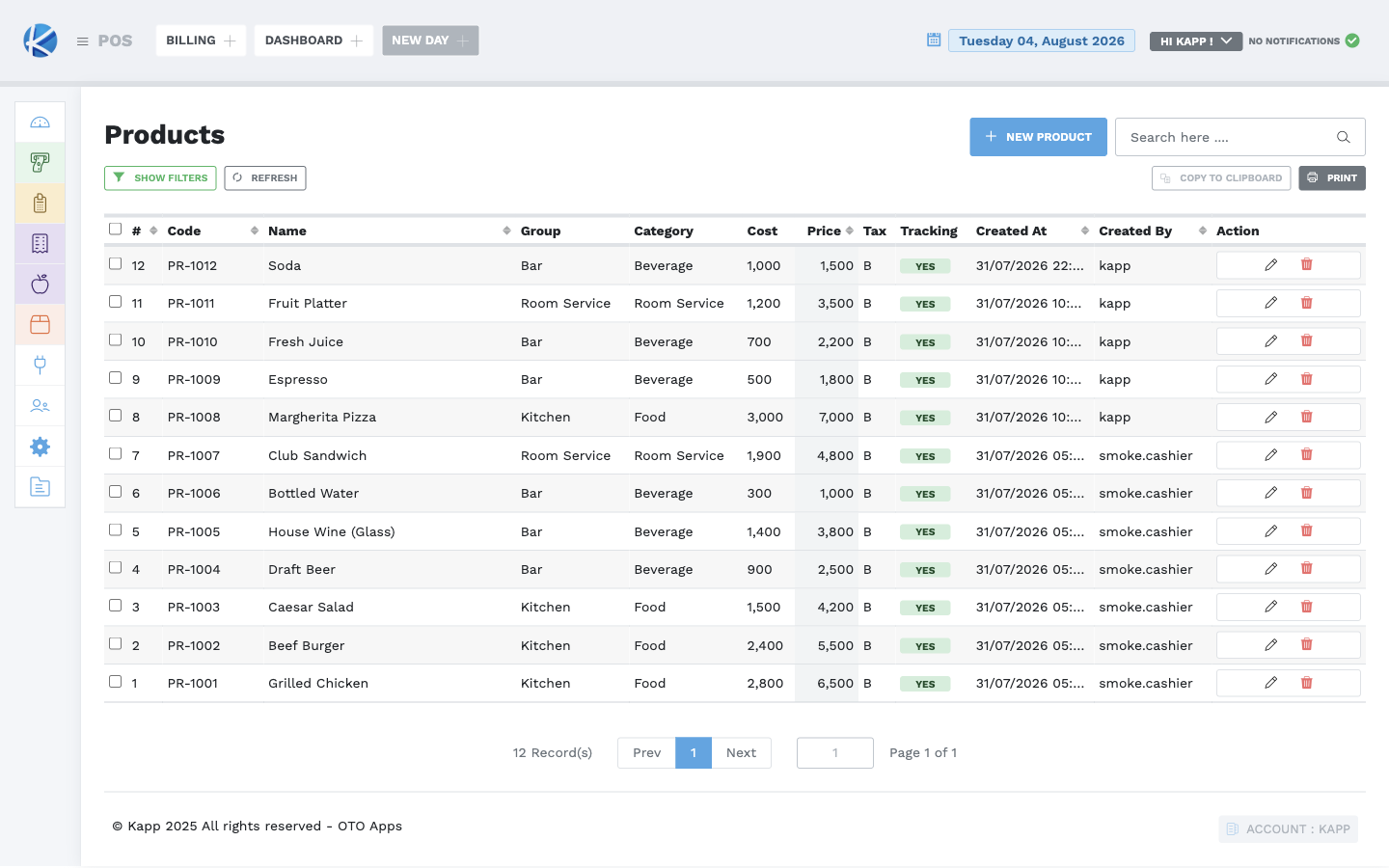
Edit a product
- Search for the exact product and select Edit.
- Compare the current record with the approved change request.
- Change only the requested fields.
- Review price, tax, unit, availability, product type, and inventory tracking before saving.
- Confirm the updated product in both Products and the intended selling screen.
Avoid deleting a product to correct its name or price. Deletion can affect availability and historical understanding; use it only through the approved catalog-removal procedure.
Create a side dish
Sides are maintained separately from products.
- Open Products → Sides and search the list first.
- Confirm that the requested side should be offered to ordering staff.
- Select NEW SIDE.
- Enter the approved side name and a useful description.
- Review the spelling, then save once.
- Confirm the side appears in the Sides list and in the KOT item options.
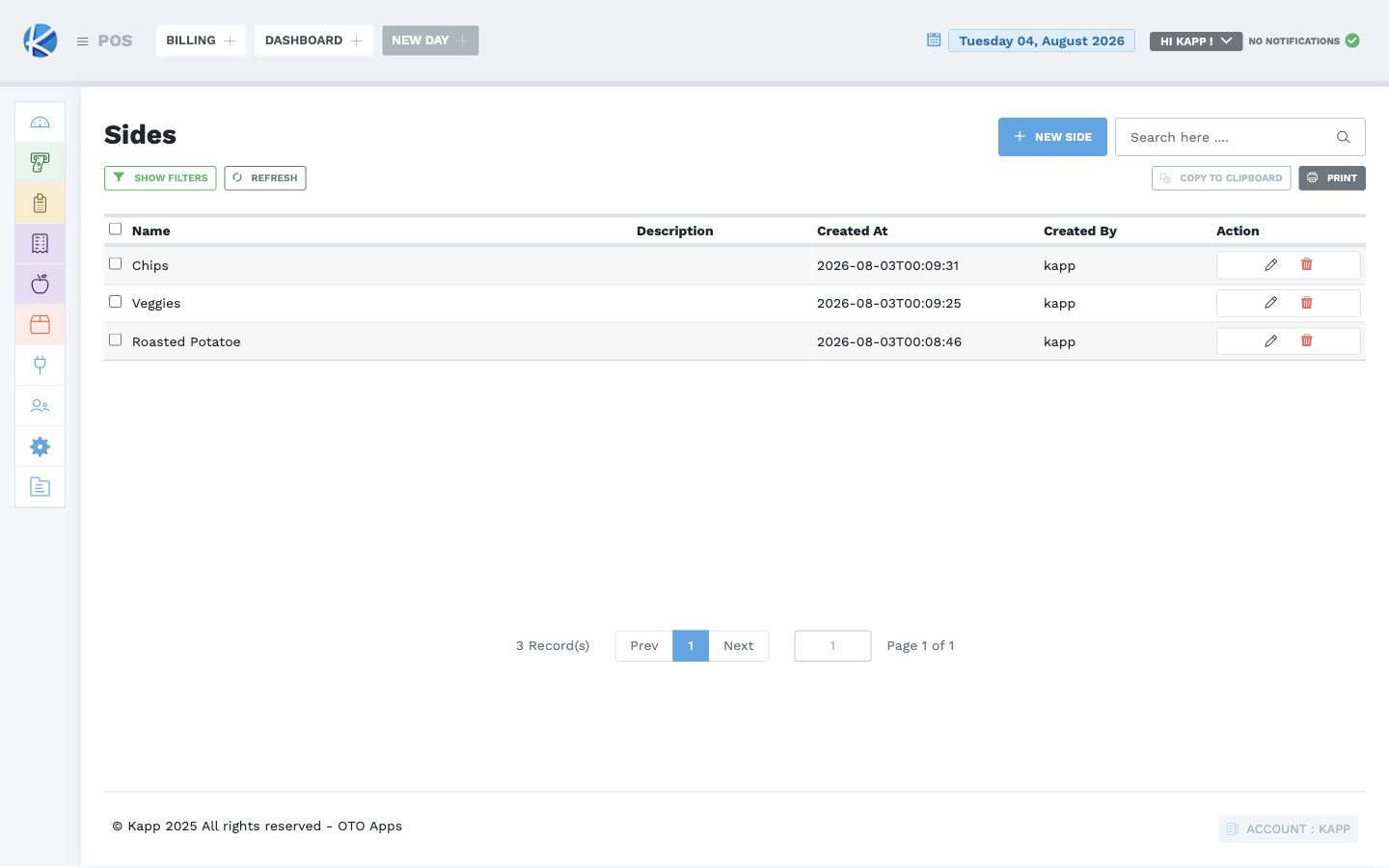
In the current POS, sides are a shared list: there is no separate product-to-side assignment on the Product form. A configured side may therefore be offered when any order item is opened. Add only choices that are meant to be available under that setup.
Edit or remove a side
- Edit the existing side when correcting its name or description.
- Before removal, confirm it is no longer needed for current ordering.
- After a change, open a test order item and verify the side list before the next service period.
- Do not remove a side merely because it is temporarily unavailable unless that is the approved operating procedure.
With the currently validated permissions, creating a side requires an Administrator role or above. A Supervisor can update or remove an existing side but should do so only on an approved emergency request. A visible button does not override these role and business-approval rules.
Put a product on a menu
A waiter orders from a menu, not from the product list. Adding the product to a menu is what makes it appear on the ordering screen.
- Open Configurations → System Settings → Menus and choose the menu the outlet uses, or select Manage Menus to review all of them. A menu has a Name, Code, Type (Standard, Seasonal, Promotional, or Event), display order, and Status.
- Check Categories for the group the item belongs under. A category carries a Name, Code, Colour, Icon, Display Order, and Status, and it is what a waiter taps first.
- Open the menu's Items and add the product as a menu item. Set its Category, Display Order, and Status.
- Check the price. A menu item shows the product's Base Price, its Menu Price, and the Difference between them. The customer is charged the Menu Price, so a menu price left at zero or set in error will be taken at the till.
- Confirm the item appears on a workstation using that menu, at the price you set.
An approved price change on a menu is a price change for every workstation that uses that menu. Change it once, then verify on a till before service.
Workstations and what each till shows
A workstation is one till or KOT screen. Workstation Menus decides which menus that workstation shows and in what order.
- Open Configurations → System Settings → Workstations to see the registered workstations.
- Open Workstation Menus and check the rows for the workstation. Each row carries a Workstation, a Menu, a Sort Order, and Active.
- Add or activate the row that gives the workstation the menu it should show. Sort Order decides which menu the operator sees first.
- Test on the workstation itself before service.
A KOT screen also holds its own local settings, reached from the start screen's Settings: the workstation key, and Enable Virtual Keyboard for terminals without a physical keyboard. Never share or photograph a workstation key.
Find why an item is missing from a till
Work down this list in order. Each step rules out one cause.
- Product — does it exist, is it available, and is it the right product type?
- Menu item — is the product on the menu the outlet uses, with a status that shows it?
- Menu category — is the category active, and is the item in it?
- Workstation menu — does this workstation have that menu, and is the row Active?
- Item to store rule — is the item routed to the store the workstation bills to? See Item to store rules.
Do not create a second product at any point in this list. A duplicate product splits sales and stock across two records and has to be corrected afterwards.
Emergency Supervisor procedure
When the Storekeeper is unavailable, a Supervisor may add or correct an urgent product or service only when the name, price, tax, type, category, group, unit, availability, and stock treatment have been approved. Record the change and send it to the Storekeeper for review at the next opportunity.
If the request is for a new side, send it to an Administrator when the current role cannot create it. Do not reuse or rename an unrelated side as a workaround.
Other POS configuration
These settings affect every transaction or user at the site. Use an approved change request, record the previous value, and verify the result after saving.
Stores and outlets
A store/outlet record includes its name, alias, warehouse, printer, and description. Search first and confirm the warehouse and printer with the responsible teams. Creating or removing a store requires Administrator role or above; editing an existing store requires Supervisor role or above.
Never create another store merely because a product or printer is missing from the intended one.
Tables
Table names and aliases must match the physical floor plan. Creating or removing a table requires Administrator role or above. Editing requires Manager role or above. A Supervisor records the request and escalates it.
After an approved change, verify the table in KOT before service.
Currencies
A currency includes its name, alias, primary status, and rate. Creating or editing requires Supervisor role or above; removal requires Administrator role or above. Changing the primary currency or rate affects payment entry and report interpretation, so use only an approved rate and effective time.
Discounts
A discount includes its name, code, rate, description, start date, and optional end date. Creating or removing requires Administrator role or above; editing requires Manager role or above.
Confirm the percentage or fixed treatment, validity dates, eligible users, and approval rule. A configured 100% discount completes a fully discounted bill as complimentary and must be tightly restricted.
Payment methods
A payment method includes its name, alias, classification, and description. Creating or removing requires Administrator role or above; editing requires Manager role or above. Its classification must match how the tender is reconciled. Test an approved change with the cashier and reports before use.
Do not rename one payment method to represent a different tender; historical transactions and reconciliation must remain understandable.
Frontdesk charge mapping
Frontdesk charge mapping connects a POS product group to the correct Frontdesk charge type for room posting. It requires Administrator role or above. Confirm both sides of the mapping with the Frontdesk/configuration owner, then test an approved fictional room bill before operational use.
Item to store rules
Rules send items to the correct store or outlet — kitchen, bar, or another counter — without mapping each product one at a time.
A rule matches on a Type (Product Category, Product Group, or Menu Category), a Match Value, and sends what it matches to a Store ID. Each rule also has a Priority, an Active flag, and a Description.
Priority decides which rule wins when more than one matches. Change one rule at a time and place a test order afterwards, because a wrong rule sends food to the wrong counter without any error being shown.
App, bill, and report settings
These settings include company/receipt details, formatting, billing behavior, printing, training mode, menus, and integrations. Saving them requires Manager role or above.
- Change one approved setting at a time and record the previous value.
- Never expose or copy an integration key into training material, screenshots, chat, or email.
- Treat price-change, manual-billing, training-mode, cash-drawer, menu, and printing settings as operational controls, not personal preferences.
- Test billing and printing after an approved change and restore the previous value if the change request calls for rollback.
Permission summary
| Configuration | Create | Edit | Remove |
|---|---|---|---|
| Product | Supervisor or above | Supervisor or above | Supervisor or above |
| Side | Administrator or above | Supervisor or above | Supervisor or above |
| Store/outlet | Administrator or above | Supervisor or above | Administrator or above |
| Table | Administrator or above | Manager or above | Administrator or above |
| Currency | Supervisor or above | Supervisor or above | Administrator or above |
| Discount | Administrator or above | Manager or above | Administrator or above |
| Payment method | Administrator or above | Manager or above | Administrator or above |
| Frontdesk charge mapping | Administrator or above | Administrator or above | Administrator or above |
| App, bill, and report settings | — | Manager or above | — |
Role permission does not replace business approval. Routine product work still belongs to the Storekeeper/configuration owner under the site's operating policy.
Final check
- Search confirms there is only one intended record.
- Product name, price, tax, group, category, and unit are correct.
- Product type and inventory tracking agree.
- Availability matches the intended selling location.
- Side spelling and description are clear.
- A test order shows the expected product and side choices.
- The change and approver are recorded for handover.
- Any store, table, currency, discount, payment, mapping, or app-setting change was tested in the affected workflow.